
Quick service & fast casual
Quick-service POS that keeps the line moving
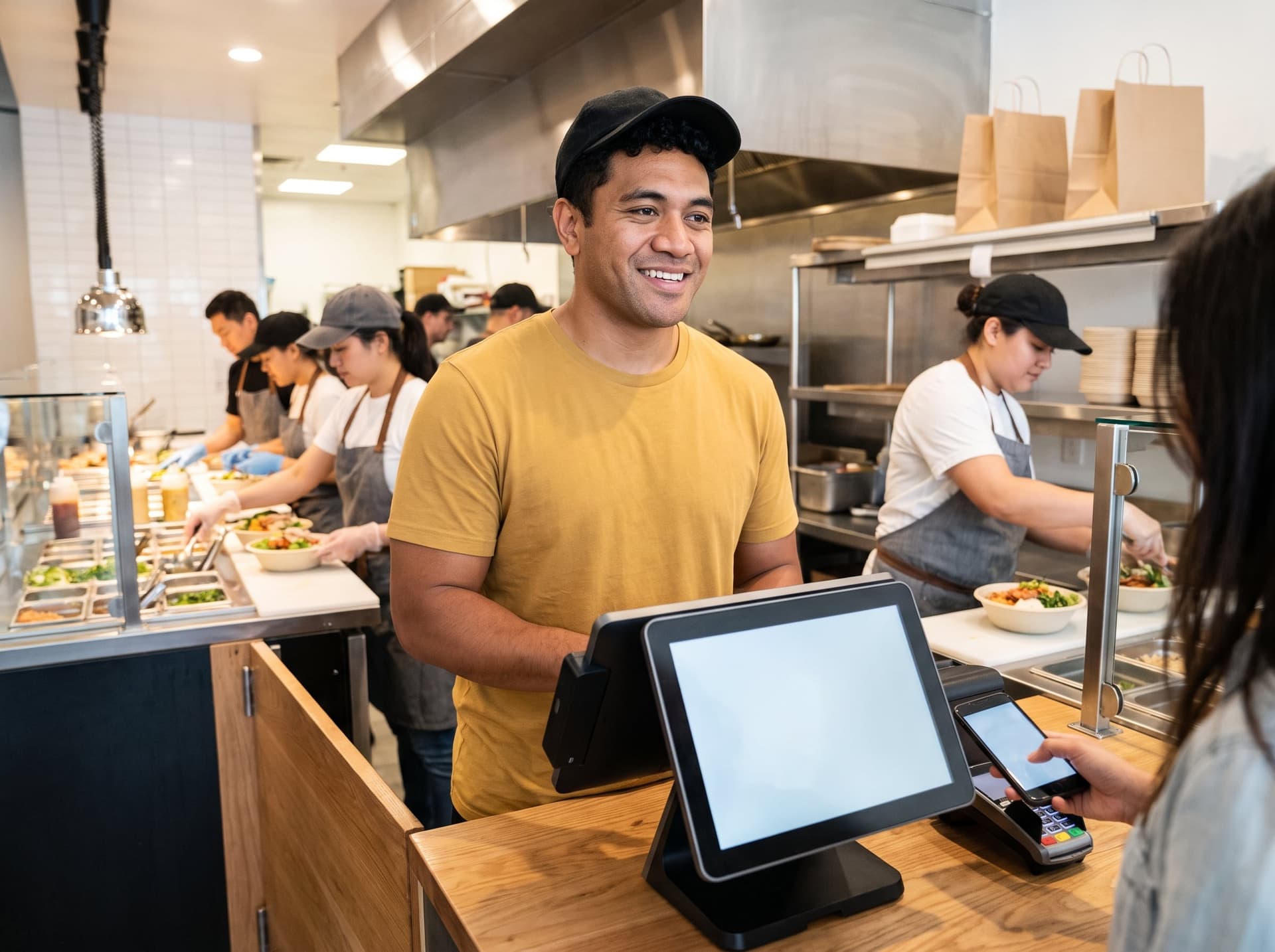
Throughput and labor decide the day. Independent and small-chain operators compete with national chains on speed with a much smaller budget, while drive-thru, kiosk and off-premise orders all land on the same kitchen.
- Headquartered in Pace, Florida
- Local installation and support
- BBB Accredited Business
- Replies within one business day
The flow a good setup has to handle
How a rush has to move
Step 1: Take every order
Counter, kiosk, online and drive-thru orders land in one queue.
Step 2: Make it in order
A kitchen display sorts tickets by time and station so nothing is missed.
Step 3: Hand it off
Expo calls the order; online orders wait at a clear pickup point.
Step 4: See the slow spots
Sales by channel and hour show where the line backs up.
How do I get through the rush with fewer people?
The short answer
A quick-service POS should take orders fast at the counter, kiosk and online, send them to one kitchen display in the order they are due, and keep the line moving when the internet drops. Choose it by how many hands you have at the rush, not by feature count.
Last reviewed
What the business actually needs
Counter speed
Combo and meal logic, upsell prompts, one-screen ordering and fast tap or mobile-wallet tender.
Kiosks, if they fit
Accessible placement and interface, a deliberate upsell flow, a plan for cash and full menu parity with the counter.
Drive-thru
An order-confirmation board, lane timers and handheld line-busting at peak.
Mobile order and pickup
Pickup shelves or lockers, order-ready texts and throttling by time slot.
Third-party delivery in one place
Delivery orders injected into the kitchen display instead of a stack of separate tablets.
Kitchen display
Station routing, a bump bar, ticket timers, all-day counts and a bag-check or expo screen.
Labor scheduling
Schedules built against forecast sales by hour, with break compliance tracking.
Loyalty
An app or phone-number program that rewards regulars for coming back.
Food cost
At least basic recipe costing and waste logging.
Multi-unit control
A central menu with location overrides and consolidated reporting.
What good technology should do
Judge any system by these outcomes
- 01Order-to-hand time that is measured and visible.
- 02More orders entered by guests through kiosk, online and mobile without added kitchen chaos.
- 03Labor matched to the hourly sales curve.
- 04One menu across every channel and every location.
Requirements checklist
Vendor-neutral. Bring it to every demo — including ours.
- Combo and meal builder with size-up and add-on prompts
- Kiosk option with an accessible interface and menu parity with the counter
- Drive-thru timers and reports, plus handheld line-busting
- Order-ready text messages and a clear pickup workflow
- Kitchen display with bump bar, timers, all-day counts and an expo or bag-check screen
- Third-party order injection with menu sync
- Online and mobile ordering throttled by time slot
- Sales forecast feeding the labor schedule
- Loyalty by phone number or app
- Recipe costing and a waste log
- Multi-location menu management and roll-up reporting
- Offline mode where the counter and kitchen screens keep working, with a defined card policy
How GCMS approaches it
Fit first, then a careful install
Step 1: Assessment
We time your peak from order to pay to hand-off, map the counter, kitchen and drive-thru, and check space and accessibility clearances for any kiosk. We also review your channel mix and labor schedule.
Step 2: Multi-platform fit
We weight kitchen display quality, kiosk and online menu parity and drive-thru support, and ask whether you plan another location, because multi-location management changes the shortlist.
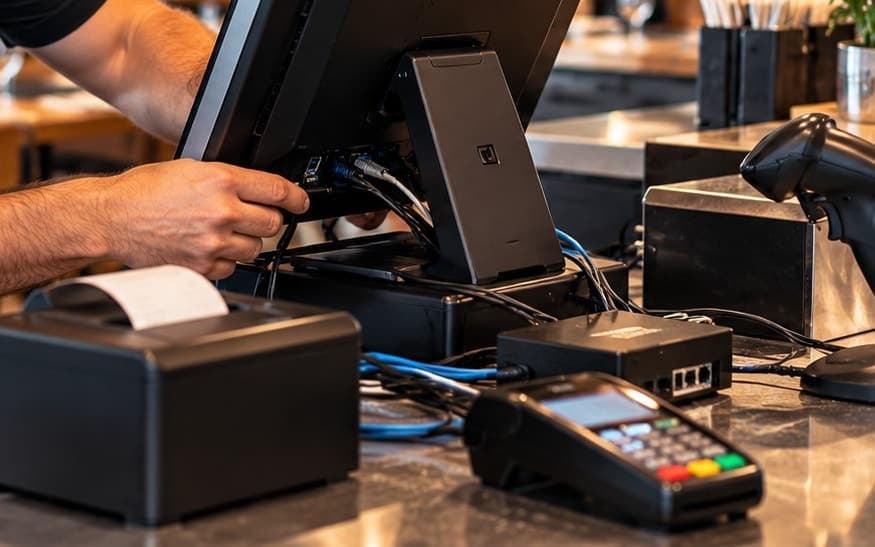
Step 3: Install & programming
We build combo logic, upsell prompts and the station routing table, set realistic drive-thru timer goals and kiosk imagery, and configure online throttling and loyalty rules.
Step 4: Training
A short cashier certification, a kitchen display session, a manager session on timers, labor and forecasting, and short videos for high-turnover roles.
When to go live
Go live after close or before open on a weekday, never in the lunch rush. Bring kiosks up after the counter POS has been stable for about a week.
After go-live
- Plan a pre-open dry run where staff place orders from every channel.
- Review timers after the first week and set realistic goals from your own baseline.
- Schedule a kiosk tune-up once you have real attach-rate data, and reorder upsells from it.
Straight answers
What most POS sites don’t tell you
Kiosks can add orders faster than the kitchen can make them.
Without kitchen routing and throttling, a kiosk just moves the bottleneck from the counter to the grill.
Tip prompts at the counter can cost goodwill.
Some guests are uneasy with pre-set tip screens at counter service. Configure the prompt deliberately; you can turn it off or change the defaults.
Kiosk accessibility is your responsibility.
Placement, reach range and screen-reader support matter. Ask how the hardware and software meet accessibility needs, and get the answer in writing.
Timers only help if someone reads them.
Pick two or three numbers your shift lead sees live, rather than a long report nobody opens.
A low average ticket makes offline card acceptance less risky.
Quick-service shops can often keep serving through an outage, but you should still know your cap and duration limits.
Quick Service POS questions
- How much does a QSR POS with kiosks cost?
- Cost depends on hardware, software, installation and contract terms, and kiosks add hardware and setup. Ask for a written, itemized quote so you can see exactly what each piece includes.
- What is the best POS for a quick-service restaurant?
- It depends on your channels, kitchen layout and whether you run a drive-thru or plan more locations. The right system is the one that keeps your counter, kitchen screens and online orders in step during your real peak.
- Are self-order kiosks worth it for a small restaurant?
- They can be when the counter is the bottleneck and the kitchen can absorb more orders. If the kitchen is already the constraint, a kiosk mostly moves the line, so look at routing and throttling first.
- Can online, kiosk and third-party orders all go to one kitchen screen?
- Many systems can combine channels on one kitchen display, but how well menus, modifiers and 86s stay in sync varies. Ask to see an order from each channel arrive on the screen during the demo.
- Does a kiosk need to be ADA accessible?
- Accessibility of self-service kiosks is an area where you should get specific advice for your business. Ask how the hardware and software support accessible use, consider placement and reach range, and confirm your obligations with counsel.
- How does mobile order-ahead affect the kitchen at peak?
- Unthrottled mobile orders arrive on top of the walk-in line and can swamp the kitchen. Limiting orders per pickup slot at peak protects quoted times for every guest.
- What happens to drive-thru orders if the internet goes down?
- It depends on the system’s offline mode. Ask whether the counter, drive-thru and kitchen screens keep working, how card payments are handled offline, and what limits apply.
- Should a quick-service restaurant ask for tips on the screen?
- That is a business choice. Most systems let you turn the prompt off, change the presets or show it only for certain order types, so decide what fits your guests and your team.
Let’s look at how your business runs
A local specialist walks through your operation and shortlists what fits. After the consultation, we can outline the recommended software, hardware, setup, and next steps for your business.